How it works
1
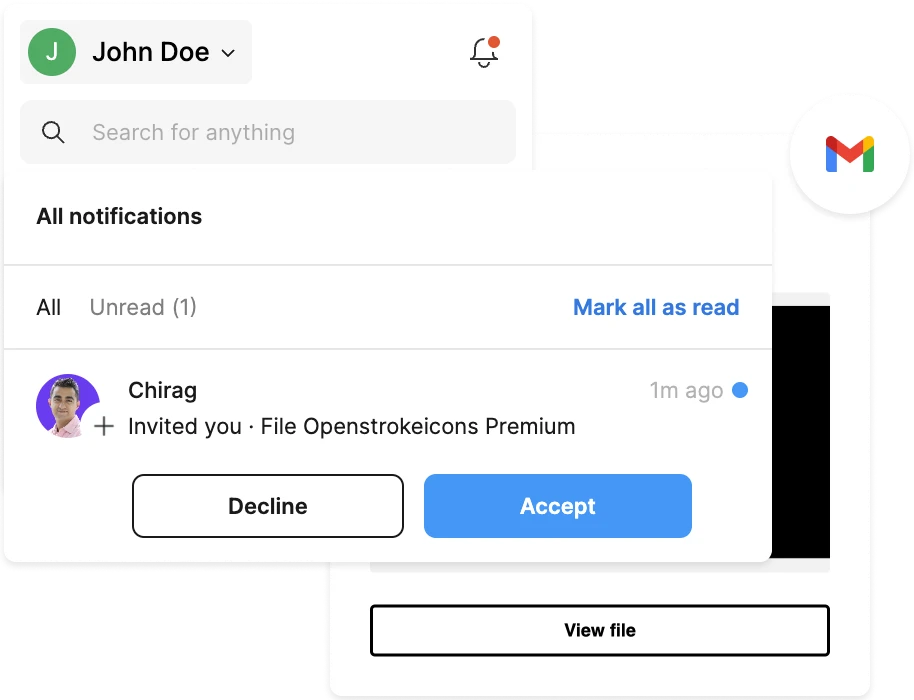
Accept invitation
Go to your Inbox to get an access to file or go to Figma, and click on bell icon to accept an invitation. You should be able to see the file now.
2
Add to file
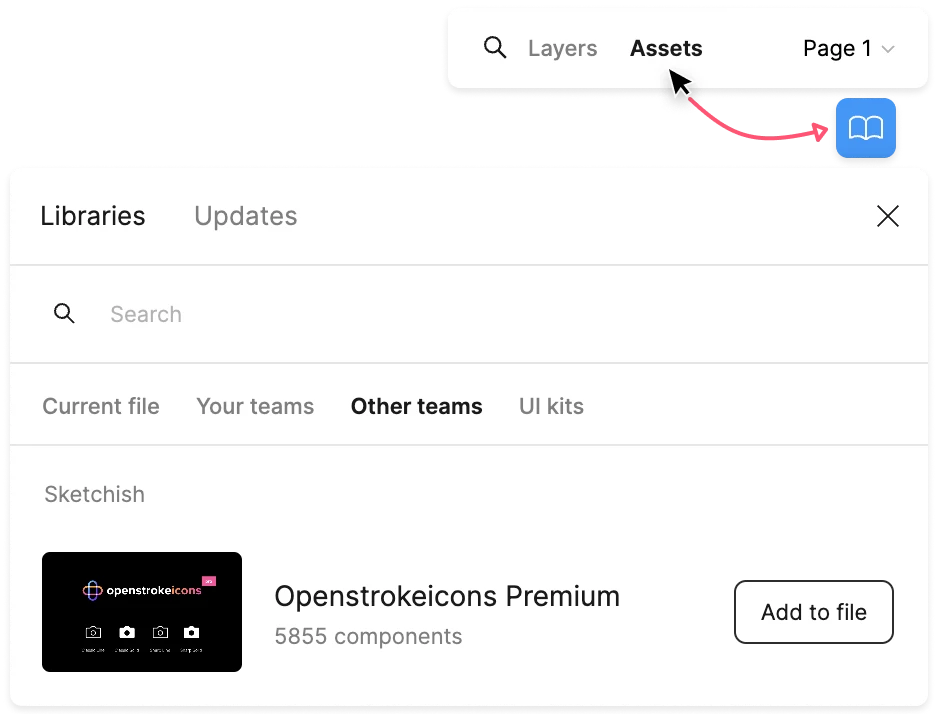
In Figma, Go to any of your design page.
- 1. Open Assets panel
- 2. Click on Library icon
- 3. Click on Other teams tab
- 4. Find “Openstrokeicons Premium”
- 5. Add to file
Great job! You have added our openstrokeicons library to your design file.
3
Search best match icon
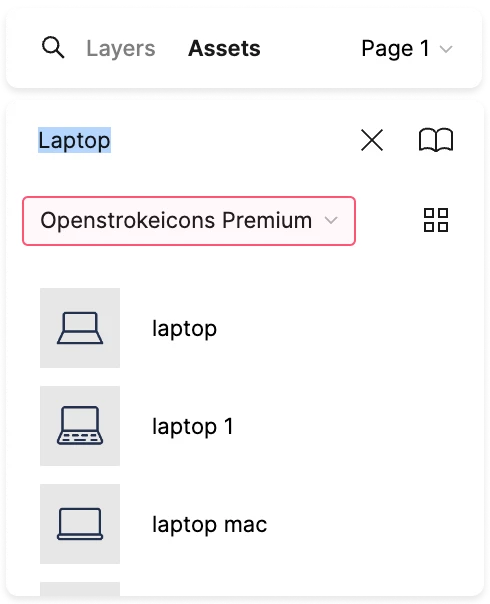
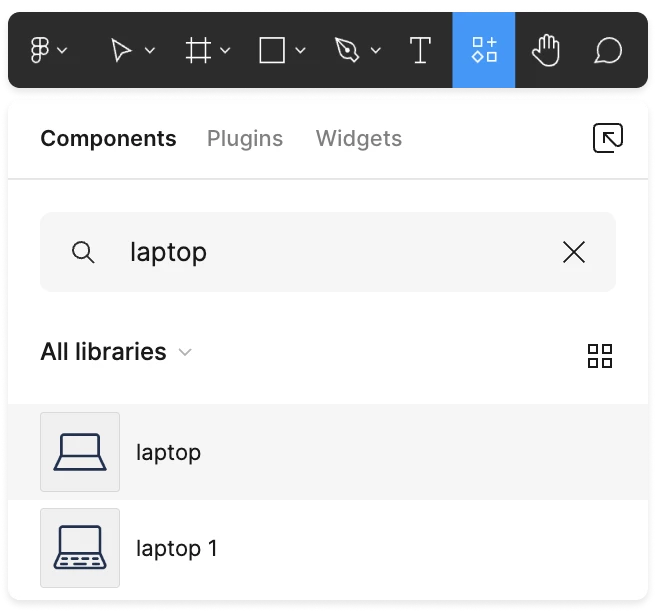
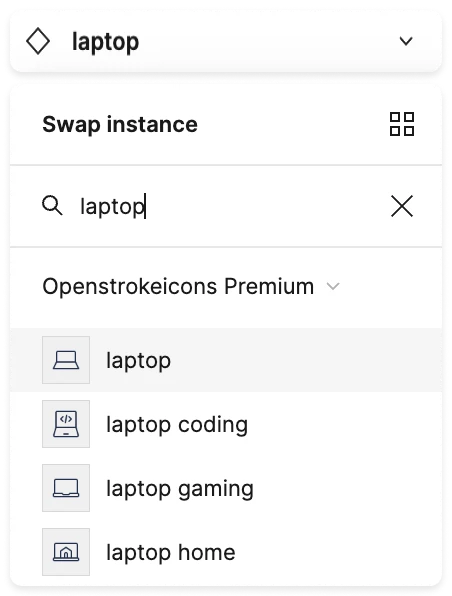
Figma offer multiple ways to search icons. Also it does allow you to swap icon or instance once you placed. Find the icons from three different places. 1. Access Left panel and go to Assets tab, make sure you have selected “Openstrokeicons - Premium”.
1. Left panel - Assets
2. Recourses (Shift + I)
3. Right panel - Swap instance
4
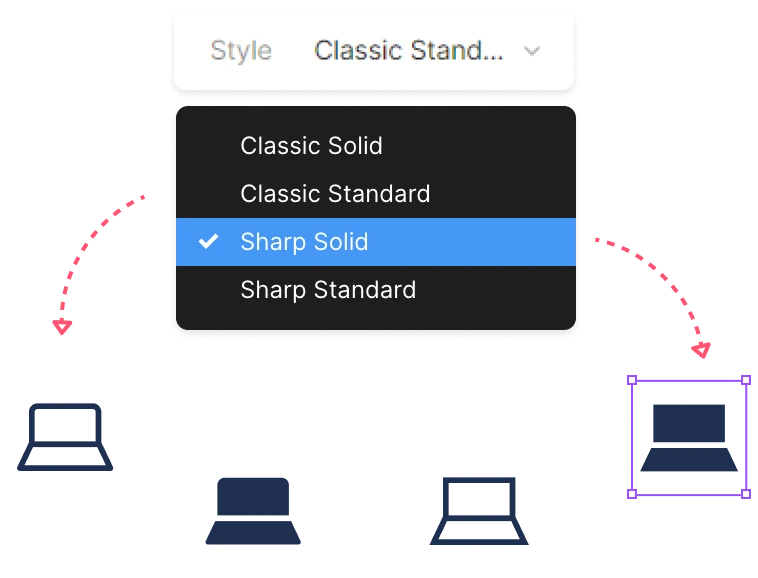
Change icons style
In Figma, Go to any of your design page.
- 1. Open Assets panel
- 2. Click on Library icon
- 3. Click on Other teams tab
- 4. Find “Openstrokeicons Premium”
- 5. Add to file